
So this happened. I’m still in the process of getting my Pioneer FreedomBox to actually run but I expect I will get there in the end.
Javascript Generators, Meet XPath
Today I read Javascript Generators, Meet XPath which was awesome.
On your Pat Malone
So I knew there was an expression that sounded like “on your pattern alone” and I knew the word “pattern” was wrong; turns out there’s an Australian slang idiom “you’re on your Pat Malone” which is rhyming slang to say that you are “alone”.
How to generate an SSL private key for use with MySQL/MariaDB and PDO
To generate an SSL private key for use with MySQL/MariaDB and PDO:
openssl genrsa -out client-key.pem 4096
Shadow IT
Today I was reading about Shadow IT over on Wikipedia.
NetBeans red line
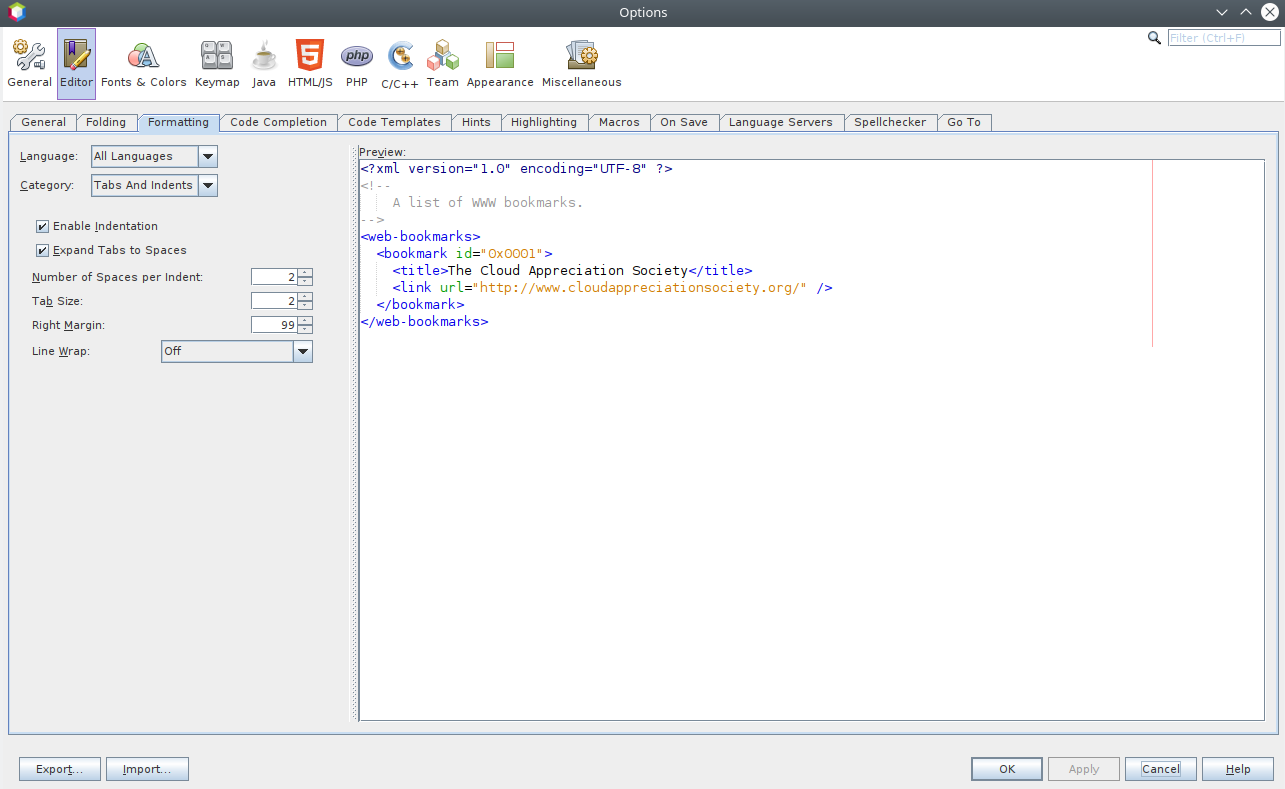
There is a feature of NetBeans where it puts a red line as the right margin in the code editor. By default this margin is at 80 characters but I prefer it at 99 characters. To change the setting in NetBeans see Tools -> Options -> Editor -> Formatting -> All Languages -> Tabs And Indents -> Right Margin. For example:
VirtualBox reference configuration for Kubuntu 18.04 hosts and Kubuntu 18.04 guests
See my reference configuration for hardware selections which worked well for me when running Kubuntu 18.04 guests on Kubuntu 18.04 hosts.
After configuring your VM you might like to read about installing Kubuntu on it.
Installing Kubuntu
So basically I want to run KDE Plasma under Ubuntu and this can be called Kubuntu.
This article is a little bit cargo-clutish. I.e. “I did this and it seemed to work.” and “I don’t do this because it didn’t seem to work.”
I have a pretty heavy reliance on Salt Stack for system configuration. My salt config is all built around Ubuntu 18.04 LTS.
When I need to install a Kubuntu desktop, this is how I do it:
- install Ubuntu Server 18.04 LTS from live installer
- apt update && apt dist-upgrade && apt autoremove && reboot
- apt install kubuntu-desktop && reboot
- apt install virtualbox-guest-dkms virtualbox-guest-utils virtualbox-guest-x11 && reboot
- apt install salt-minion
- vim /etc/salt/minion_id
- vim /etc/salt/minion.d/minion.conf
- master: salt.staticmagic.net
- service salt-minion restart
- salt-call state.highstate
Note that if your Kubuntu install is a VirtualBox guest you need to start it with a normal start if you want the shared clipboard to work. If you start headless or detachable the shared clipboard will not work (in my experience).
If your Kubuntu install is not a VirtualBox guest you can skip the virtualbox-guest-* package installation above.
Shared clipboard for Ubuntu 18.04 guest in Ubutnu 18.04 host under VirtualBox 6.0
My shared clipboard wasn’t working for my Ubuntu 18.04 guests running on my Ubutnu 18.04 host under VirtualBox 6.0.
To fix first make sure that the shared clipboard is enabled in VirtualBox for the VM. The setting for that is under General -> Advanced -> Shared Clipboard.
Then try running these commands in the guest:
- sudo apt install virtualbox-guest-dkms virtualbox-guest-utils virtualbox-guest-x11
- sudo reboot
These steps (or something similar) got the shared clipboard working for me. Hooray!
Note that these instructions will vary if you’re running a HWE kernel.
network.http.sendRefererHeader
To disable the HTTP Referrer (Referer) header in Firefox open about:config and set network.http.sendRefererHeader to zero.